
QuickBooks is an essential accounting software used by millions of businesses worldwide. However, like any other software, it is prone to errors, one of which is QuickBooks Error 3371 Status Code 11118. This error often appears when users try to activate or reconfigure QuickBooks Desktop on their computers. Understanding its causes and implementing the correct solutions is crucial for maintaining a smooth workflow.
This article provides a comprehensive guide to identifying, diagnosing, and resolving QuickBooks Error 3371 Status Code 11118 effectively.
What is QuickBooks Error 3371 Status Code 11118?
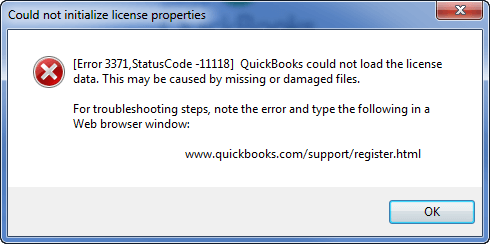
QuickBooks Error 3371 Status Code 11118 occurs when QuickBooks cannot initialize the license properties. This is often due to missing or damaged files that are essential for software activation. The error message typically states:
“QuickBooks could not load the license data. This may be caused by missing or damaged files.”
When this error occurs, QuickBooks fails to open, preventing users from accessing their financial data.
Causes of QuickBooks 3371 Status Code 11118
Several factors can trigger this error, including:
1. Damaged or Missing License File (EntitlementDataStore.ecml)
QuickBooks stores its licensing information in a file called EntitlementDataStore.ecml. If this file becomes corrupted, QuickBooks will not be able to validate the license.
2. Damaged QuickBooks Installation
If the installation of QuickBooks Desktop is incomplete or has been corrupted, this error can occur.
3. Issues with MSXML Component
QuickBooks relies on Microsoft XML (MSXML) for certain functions. If this component is damaged or missing, QuickBooks cannot function properly.
4. Windows Operating System Issues
If your Windows OS is outdated or missing crucial updates, QuickBooks might fail to load correctly.
5. Anti-virus or Third-party Security Software Conflicts
Security software sometimes mistakenly blocks QuickBooks files, leading to this error.
6. Network Issues
If QuickBooks is being installed or activated in a network environment with unstable connectivity, it may fail to retrieve the required files.
Symptoms of QuickBooks Error 3371 Status Code 11118
When this error occurs, you may experience the following symptoms:
- QuickBooks fails to launch.
- You receive an error message stating, “QuickBooks could not load the license data.”
- The system runs slowly or crashes frequently.
- Other QuickBooks components fail to function properly.
How to Fix QuickBooks Error 3371 Status Code 11118?
To resolve this error, follow the step-by-step solutions outlined below.
Solution 1: Update Windows Operating System
Before troubleshooting QuickBooks, ensure your Windows OS is updated:
- Press Windows + I to open Settings.
- Click Update & Security > Windows Update.
- Click Check for updates.
- Install any available updates and restart your computer.
Solution 2: Delete the EntitlementDataStore.ecml File
Deleting this file forces QuickBooks to revalidate the license.
- Close QuickBooks.
- Press Windows + R, type C:\ProgramData\Intuit\Entitlement Client\v8, and press Enter.
- Locate and delete EntitlementDataStore.ecml.
- Reopen QuickBooks and try activating it again.
Solution 3: Run QuickBooks Install Diagnostic Tool
This tool automatically diagnoses and repairs installation issues.
- Download the QuickBooks Tool Hub from Intuit’s official website.
- Open QuickBooksToolHub.exe and follow the installation steps.
- Launch the Tool Hub and go to Installation Issues.
- Click QuickBooks Install Diagnostic Tool and let it run.
- Restart your computer and check if the error persists.
Solution 4: Manually Install Microsoft MSXML
If MSXML components are missing, reinstall them:
- Open the Run dialog (Windows + R) and type appwiz.cpl, then press Enter.
- Locate and uninstall any existing MSXML versions.
- Download and install the latest MSXML package from Microsoft’s official website.
- Restart your system and try running QuickBooks again.
Solution 5: Perform a Clean Install of QuickBooks
If the problem persists, reinstall QuickBooks:
- Uninstall QuickBooks from Control Panel > Programs and Features.
- Rename installation folders located at:
- C:\ProgramData\Intuit\QuickBooks
- C:\Users\[Your User]\AppData\Local\Intuit\QuickBooks
- C:\Program Files\Intuit\QuickBooks
- Reinstall QuickBooks using the latest version from Intuit’s website.
Solution 6: Check Anti-Virus & Firewall Settings
Ensure that your security software is not blocking QuickBooks files.
- Open your security software.
- Add QuickBooks and its associated files to the exclusion list.
- Temporarily disable the anti-virus and see if QuickBooks launches.
Solution 7: Contact QuickBooks Support
If none of the above solutions work, contacting QuickBooks support is recommended. Visit Intuit’s official support page for assistance.
Preventive Measures to Avoid QuickBooks Error 3371 Status Code 11118
To prevent this error in the future:
- Regularly update QuickBooks and Windows to ensure compatibility.
- Create backups of QuickBooks data files frequently.
- Use a stable internet connection during installation and activation.
- Ensure security software does not interfere with QuickBooks.
- Run QuickBooks as an administrator to avoid permission issues.
Conclusion
QuickBooks Error 3371 Status Code 11118 can be frustrating, but by following the outlined troubleshooting steps, you can resolve the issue effectively. Whether it’s updating your system, repairing installation files, or checking for software conflicts, these solutions will help restore QuickBooks’ functionality and ensure seamless accounting operations.
If you continue to face issues, seeking professional support from QuickBooks experts is the best course of action. Proper maintenance and proactive troubleshooting will help prevent such errors in the future, keeping your financial data secure and accessible.
Frequently Asked Questions (FAQs)
QuickBooks Error 3371 Status Code 11118 occurs when QuickBooks fails to load the license data due to missing or damaged files. This error is usually caused by issues with the EntitlementDataStore.ecml file, which holds QuickBooks license information.
This error can be triggered by several factors, including:
1. Corrupt or missing EntitlementDataStore.ecml file
2. Damaged Windows files, such as MSXML components
3. Outdated Windows OS
4. Antivirus interference with QuickBooks files
5. Improper shutdown of QuickBooks
o resolve this error, try the following steps:
1. Close QuickBooks and make sure it’s not running.
2. Delete the EntitlementDataStore.ecml file located in:C:\ProgramData\Intuit\Entitlement Client\v8 (or v6)
3. Update Windows OS and install pending updates.
4. Run QuickBooks Tool Hub and use the “Quick Fix my Program” feature.
5. Reinstall QuickBooks if the issue persists.
The EntitlementDataStore.ecml file is stored in:C:\ProgramData\Intuit\Entitlement Client\v8 (or v6)
You need to delete this file and restart QuickBooks to recreate it.
Yes, but before reinstalling, try deleting the EntitlementDataStore.ecml file and updating Windows. If the issue persists, uninstall QuickBooks, use the QuickBooks Clean Install Tool, and reinstall QuickBooks.
No, QuickBooks Error 3371 does not affect your company files. It only prevents QuickBooks from opening. Once resolved, your data will be intact.